File Format & Resolution · iPhone HEIC to 300 DPI JPEG
iPhone HEIC Photo Not Accepted on Government Forms: How to Convert to a 300 DPI JPEG in Your Browser
3 min read · Reviewed on: 2026-11-07
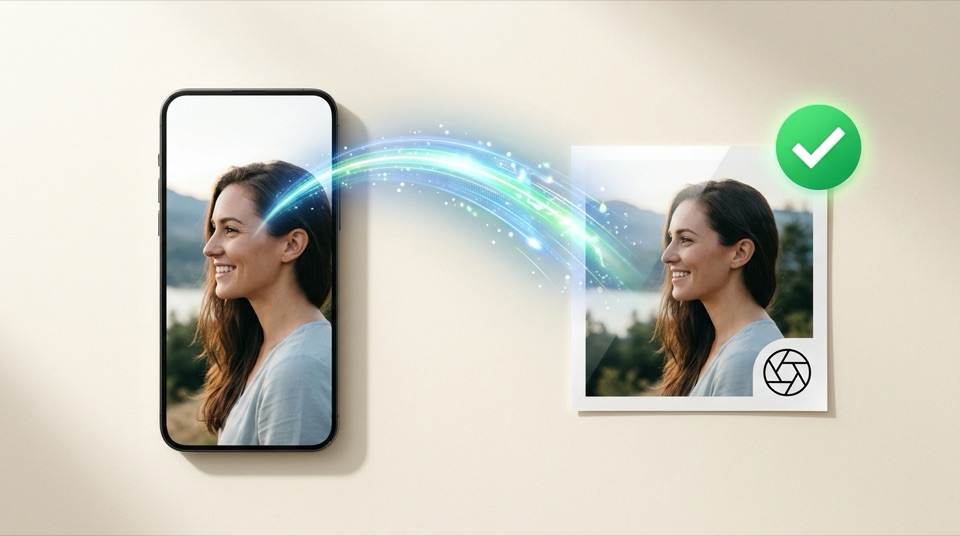
Direct Answer (Technical Summary)
Government portals (U.S. CEAC DS-160, IRCC Canada, GOV.UK, VFS Global) only accept .JPG / .JPEG files and reject Apple’s default .HEIC format. If you open PassPhotoFree directly in Safari on your iPhone, iPad or Mac, Safari decodes the HEIC file natively and exports a standard 300 DPI JPEG within the exact kilobyte limit—without uploading your photo anywhere.
Technical comparison: Raw iPhone photo vs. Government-compliant JPEG
| Attribute | Raw iPhone Photo (.HEIC) | PassPhotoFree Output (.JPG) |
|---|---|---|
| File format | .HEIC / HEIF (rejected by government portals) | .JPG (Universal baseline JPEG) |
| Typical file weight | 1.8 MB to 4.5 MB | Automatically compressed to authority limit (e.g., ≤ 240 KB or ≤ 500 KB) |
| Resolution header | 72 DPI or no JFIF header | 300 × 300 DPI written into the JFIF APP0 header |
| EXIF orientation | Stored as metadata tag (often appears sideways on old portals) | Pixels physically rotated on the canvas |
1. Why iPhone photos fail or appear sideways on visa portals
By default, iPhones capture photos in HEIC format and store portrait rotation as an EXIF metadata tag. Many government upload portals reject HEIC files outright or strip EXIF tags, causing your portrait to appear rotated 90 degrees.
When you open your photo in PassPhotoFree using Safari on iOS or macOS, the browser decodes the image in memory, bakes the upright orientation into the pixel grid, and outputs a compliant 300 DPI JPEG.
2. How to make your iPhone shoot JPEG directly (“Most Compatible”)
If you transferred a `.HEIC` file to a Windows PC where the browser cannot decode HEIC natively, you have two fast options:
- For new photos: on your iPhone, go to Settings > Camera > Formats and select “Most Compatible” so the camera saves standard JPEGs.
- For existing photos: open PassPhotoFree directly in Safari on your iPhone, or export the photo as JPEG from the Photos app before transferring.
Final file checklist for online government portals
- Standard .jpg file extension
- Upright pixel orientation (no EXIF rotation dependency)
- 300 DPI JFIF metadata embedded
- File size within the authority ceiling (240 KB for U.S., 500 KB for Schengen/Brazil)
Frequently asked questions
Should I send my photo through WhatsApp to convert it to JPG?
Avoid messaging apps if possible—they strip resolution and over-compress facial details. Opening the original photo in Safari on your iPhone preserves full 300 DPI sharpness.
Is my iPhone photo uploaded to a server during conversion?
No. Decoding, cropping and 300 DPI JPEG encoding happen 100% locally inside your browser.
Related document presets (open editor)
All documents →
More technical guides
U.S. Visa & Passport · Form DS-160
U.S. Visa Photo Rejected on DS-160: How to Fix 600×600 Pixels, White Background & 240 KB Limit
True-Scale Printing · 300 DPI
How to Print Passport & ID Photos on 4×6 in (10×15 cm) or A4 Paper Without Losing Scale
Baby & Infant Guide · Shadow-Free Method