True-Scale Printing · 300 DPI
How to Print Passport & ID Photos on 4×6 in (10×15 cm) or A4 Paper Without Losing Scale
4 min read · Reviewed on: 2026-11-07
Direct Answer (Technical Summary)
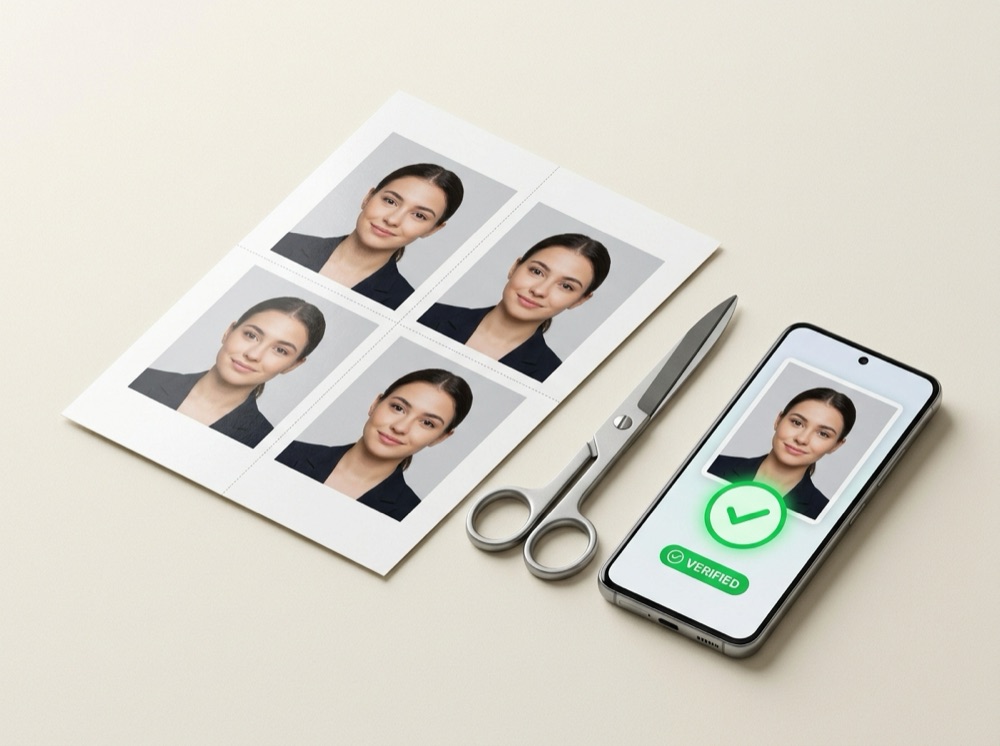
To print passport or visa photos at their exact millimetre size (35×45 mm, 2×2 in, or 30×40 mm), the image must be embedded in a 300 DPI canvas matching the exact paper size (10×15 cm / 4×6 in = 1181 × 1772 px; A4 = 2480 × 3508 px) and printed at 100% Actual Size (with “Fit to page” disabled). In PassPhotoFree, click “Print sheet with multiple photos” to download a ready-to-print sheet with 2 to 8 copies and dotted cut lines.
Photos per sheet at 300 DPI (including safety margins and cut guides)
| Photo Format | Dimensions | 10×15 cm (~4×6 in) Paper | A4 Paper (21×29.7 cm) |
|---|---|---|---|
| Brazil / Latin America 3×4 | 30 × 40 mm (354 × 472 px) | 2, 4, 6 or 8 photos | 2, 4, 6 or 8 photos |
| Schengen / UK / ICAO | 35 × 45 mm (413 × 531 px) | 2, 4, 6 or 8 photos | 2, 4, 6 or 8 photos |
| Spain DNI / Passport | 26 × 32 mm (307 × 378 px) | 2, 4, 6 or 8 photos | 2, 4, 6 or 8 photos |
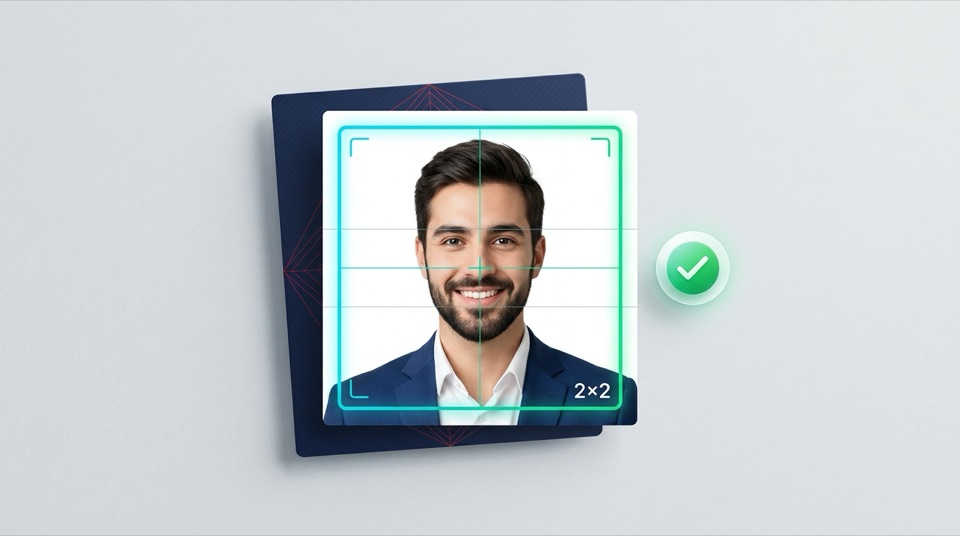
| USA Passport / Visa 2×2 in | 50.8 × 50.8 mm (600 × 600 px) | 2 photos | 2, 4, 6 or 8 photos |
| Canada Passport 50×70 mm | 50 × 70 mm (591 × 827 px) | 2 photos | 2, 4, 6 or 8 photos |
1. The #1 printing mistake: “Fit to Page” scaling
When you print a single passport photo directly, printer drivers and pharmacy kiosks often stretch the photo to fill the sheet or shrink it to add printer margins. A 35 × 45 mm photo ends up measuring 32 × 41 mm and gets rejected at the consulate.
PassPhotoFree solves this by placing each photo at its exact 300 DPI pixel dimensions inside a full-page canvas (1181 × 1772 px for 10×15 cm or 2480 × 3508 px for A4) and writing 300 DPI into the JPEG JFIF header.
2. Pharmacy Kiosk (10×15 cm / 4×6 in) vs. Home/Copy Shop (A4)
For photo kiosks, choose “10 × 15 cm” in the sheet dialog and ensure borderless/auto-crop zooming is turned off at the kiosk. For home printers or copy shops, select “A4 (21 × 29.7 cm)”, use photo paper (180 gsm or heavier), and select “Actual size / Scale 100%”.
- Uncheck “Fit to page” or “Shrink to fit printable area” in the print dialog.
- Measure one printed photo with a ruler before cutting along the dotted grey lines.
Print verification checklist
- Selected the matching paper size (10×15 cm or A4) in the sheet generator
- Set printer scaling to 100% (Actual Size) and disabled Fit to Page
- Printed on 180+ gsm matte or glossy photo paper
- Verified width and height with a ruler before cutting
Frequently asked questions
Why do only 2 U.S. (2×2 in) or Canadian (50×70 mm) photos fit on a 10×15 cm sheet?
Two 50.8 mm photos side by side require 101.6 mm plus margins, which exceeds the 100 mm width of a 10×15 cm sheet. Choosing A4 allows up to 8 photos per sheet.
Does the downloaded sheet contain real 300 DPI metadata?
Yes. PassPhotoFree patches the JPEG APP0 JFIF header to 300 × 300 DPI without recompressing the image.
Related document presets (open editor)
All documents →
More technical guides
U.S. Visa & Passport · Form DS-160
U.S. Visa Photo Rejected on DS-160: How to Fix 600×600 Pixels, White Background & 240 KB Limit
Baby & Infant Guide · Shadow-Free Method
How to Take a Baby or Newborn Passport & Visa Photo at Home (White Sheet Method)
Federal Police & Consulates · Brazil